

Chapter 3 of 6 · min 6:51 to 8:52
How to connect your data sources and destination in Detrics
Connect Meta, Google Ads, Pinterest and GA4 in Detrics without code, just clicks, and create the destination pointing to a Google Cloud project with billing enabled.
Watch on YouTube (from 6:51) · Spanish audio
Connect the data sources
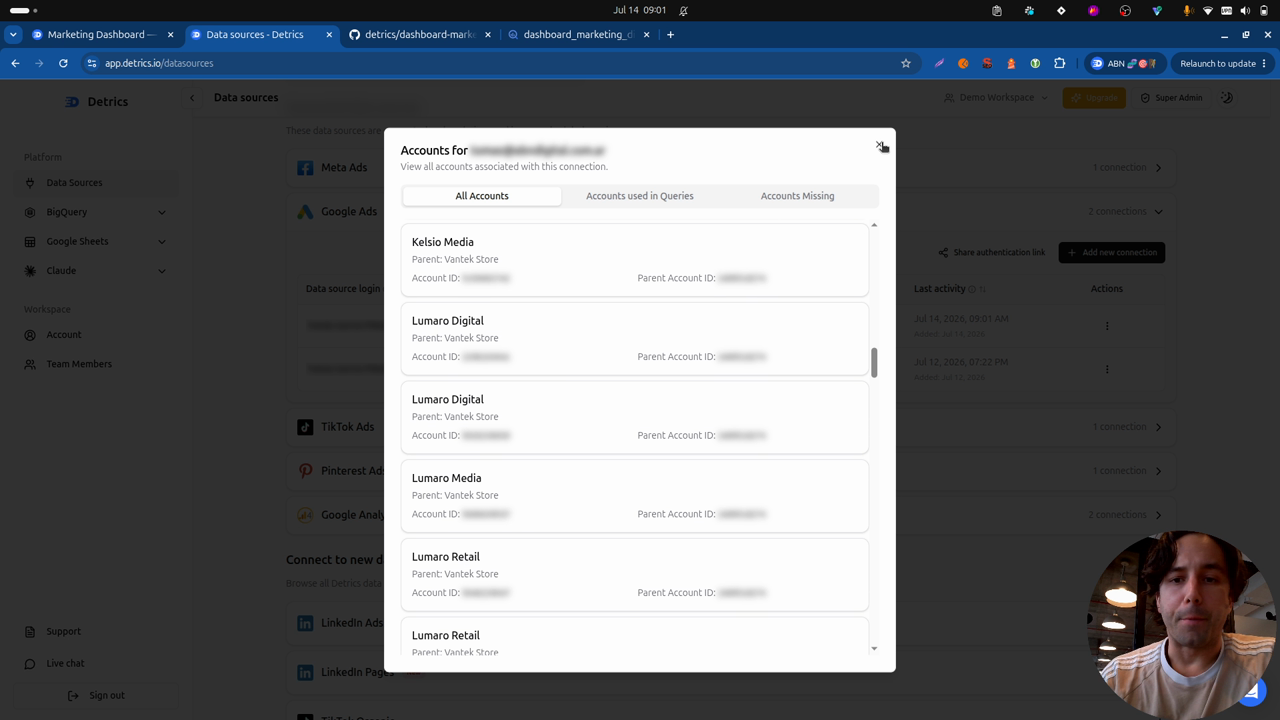
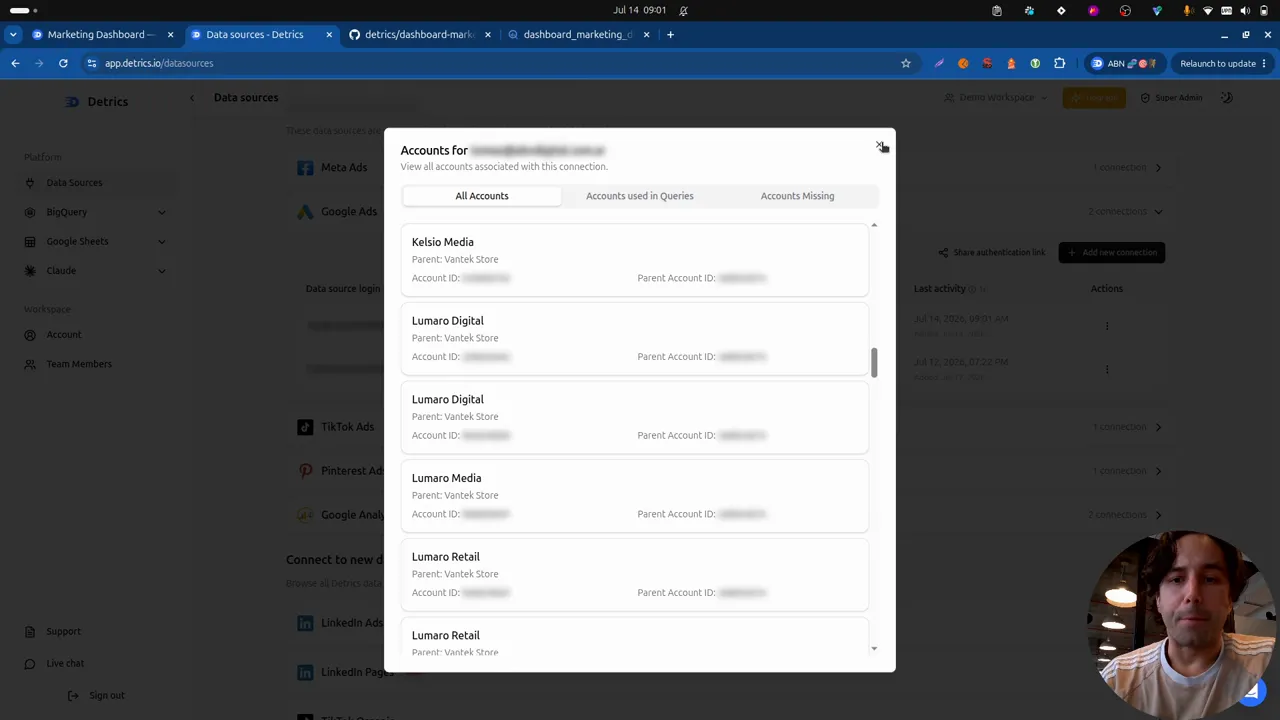
The first step is going to app.detrics.io (if you don’t have an account, make one) and connecting the data sources. The video shows how one gets connected; the process is always the same for any platform: no code needed, it’s simply clicking through.
Once connected, the authorized account appears along with all your platform accounts (in the video everything is blurred and anonymized since it’s a demo environment).
Create the destination
What’s left is connecting the destination: where the data goes. For this you need a Google Cloud project with billing enabled.
In the destinations section, you create a new one and enter the ID of the Google Cloud project where you work with BigQuery. The system checks all the permissions and, once everything is fine, the destination is created.
With the data source and the destination ready, the next step is creating the tables and the transfers.
Frequently asked questions
Do I need to know how to code to connect the sources?
No. Connecting a data source in Detrics is a click-through flow: you authorize the account and all your platform accounts show up, no code involved.
What do I need to create the destination?
A Google Cloud project with billing enabled. You enter the project ID in Detrics, the system checks permissions and the destination is created.
All chapters in this series
- 0:00 1. A look at the final dashboard
- 4:24 2. Architecture and steps to build it
- 6:51 3. Step one: connect data sources and destinations with Detrics
- 8:52 4. Step two: create the tables and transfers to BigQuery
- 17:39 5. Step three: consolidate the tables and build the dashboard with Claude Code
- 31:46 6. Final step: deploy with Vercel
Want to build this with your own data?
